

Viewing Curriculum
The Curriculum Widget
Section titled “The Curriculum Widget”When a scenario with curriculum is deployed, the Curriculum panel appears in the lower right of your arena home screen. It tracks your progress through the scenario on this run-through — how many chapters you’ve completed, how many unlocks you have left, and the last chapter you were in — all without opening the full viewer.
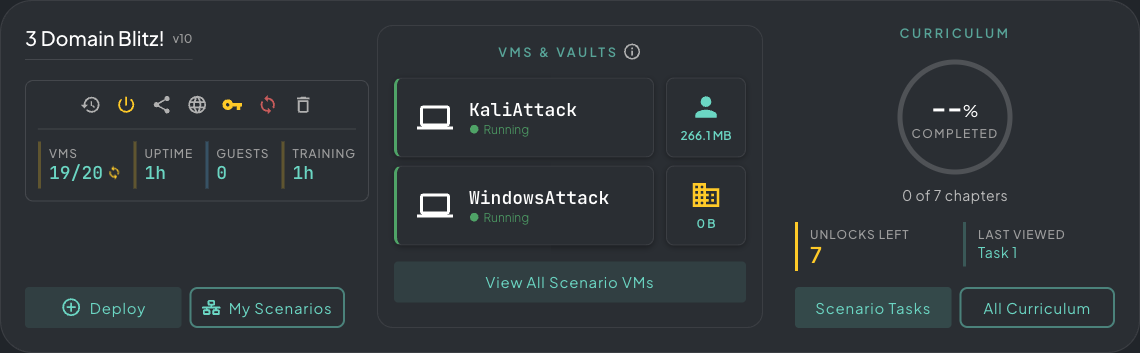 The Curriculum widget — completion percentage, unlocks left, and a shortcut back to the last chapter you opened.
From the widget you can jump directly to Scenario Tasks (the objectives tied to your active deployment) or open All Curriculum to browse all available courses.
Viewing Scenario Curriculum
Section titled “Viewing Scenario Curriculum”Click Scenario Tasks from the widget to open the full curriculum viewer. The viewer floats over your workspace — hit the maximise button in the top-right corner of the window to go full-screen.
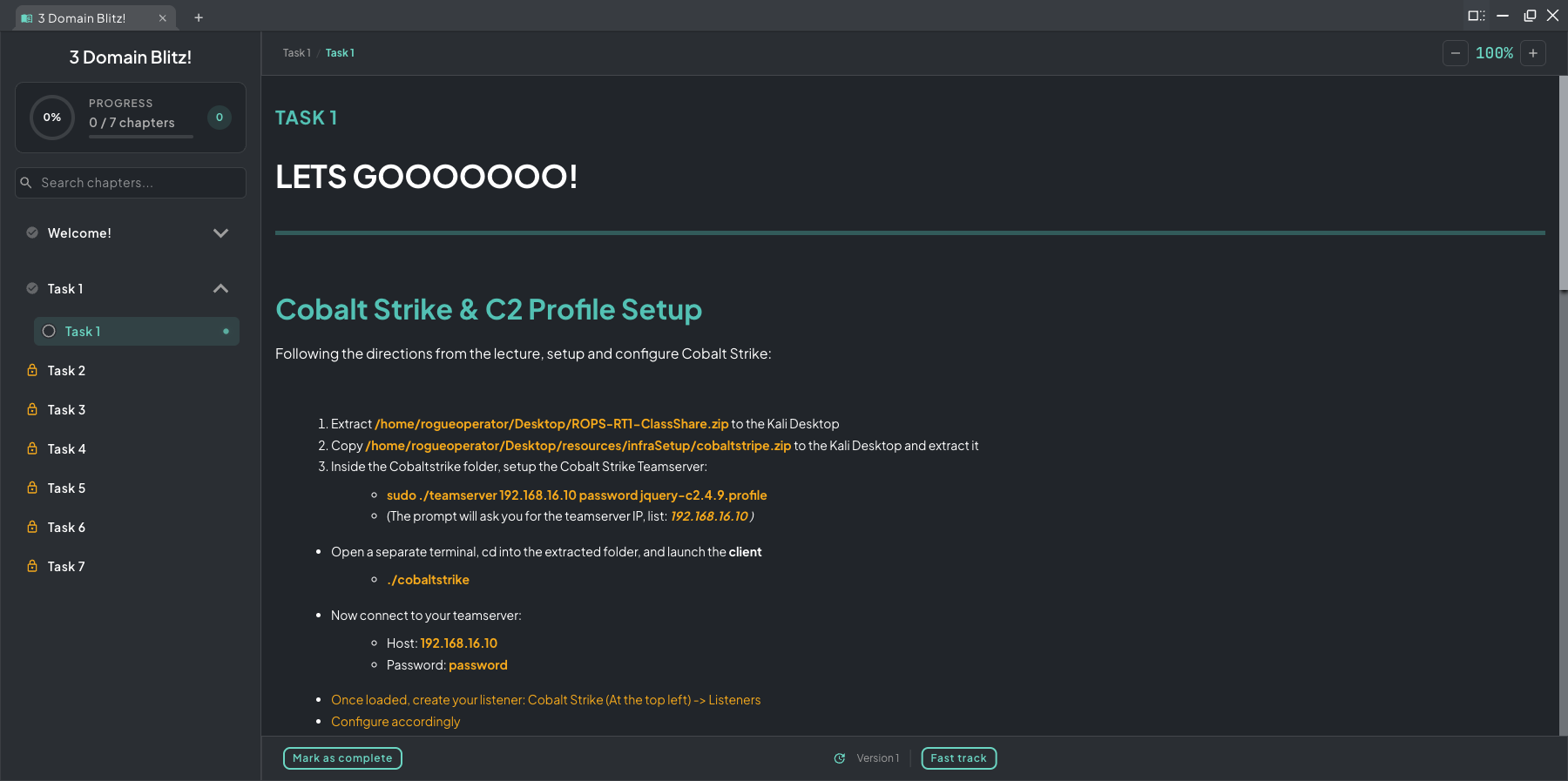 The full curriculum viewer maximised — chapter list on the left, task content and inline questions on the right.
Content is organized into chapters and sections — written guides, videos, objectives, and inline questions. How chapters unlock depends on the course type:
Linear Curriculum
Section titled “Linear Curriculum”Chapters unlock in order. Complete the objectives and answer the questions in one chapter to unlock the next. The chapter list on the left shows your progress at a glance — completed chapters, the currently active section, and all upcoming locked chapters.
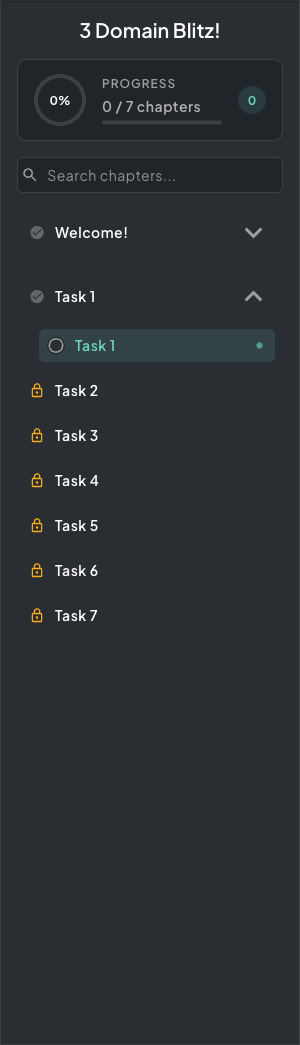 Linear chapter list — completed chapters tick off, the active chapter shows progress, locked chapters wait their turn.
Question types:
- Multiple choice — select the correct answer and submit
- Free text / flag submission — type your answer or paste a captured flag and submit
- Objective markers — some sections complete automatically when you perform an action in the lab; the platform detects it
Incorrect answers don’t lock you out — you can retry as many times as the instructor has configured.
CTF Curriculum
Section titled “CTF Curriculum”CTF-style courses replace the chapter list with a node graph. Some nodes are open by default; the rest unlock as you complete prerequisites. Completing one node may unlock several others, so multiple paths run in parallel and you can pick your route.
As you progress, only the next layer of nodes is visible — everything beyond is hidden by a fog of war until adjacent nodes unlock.
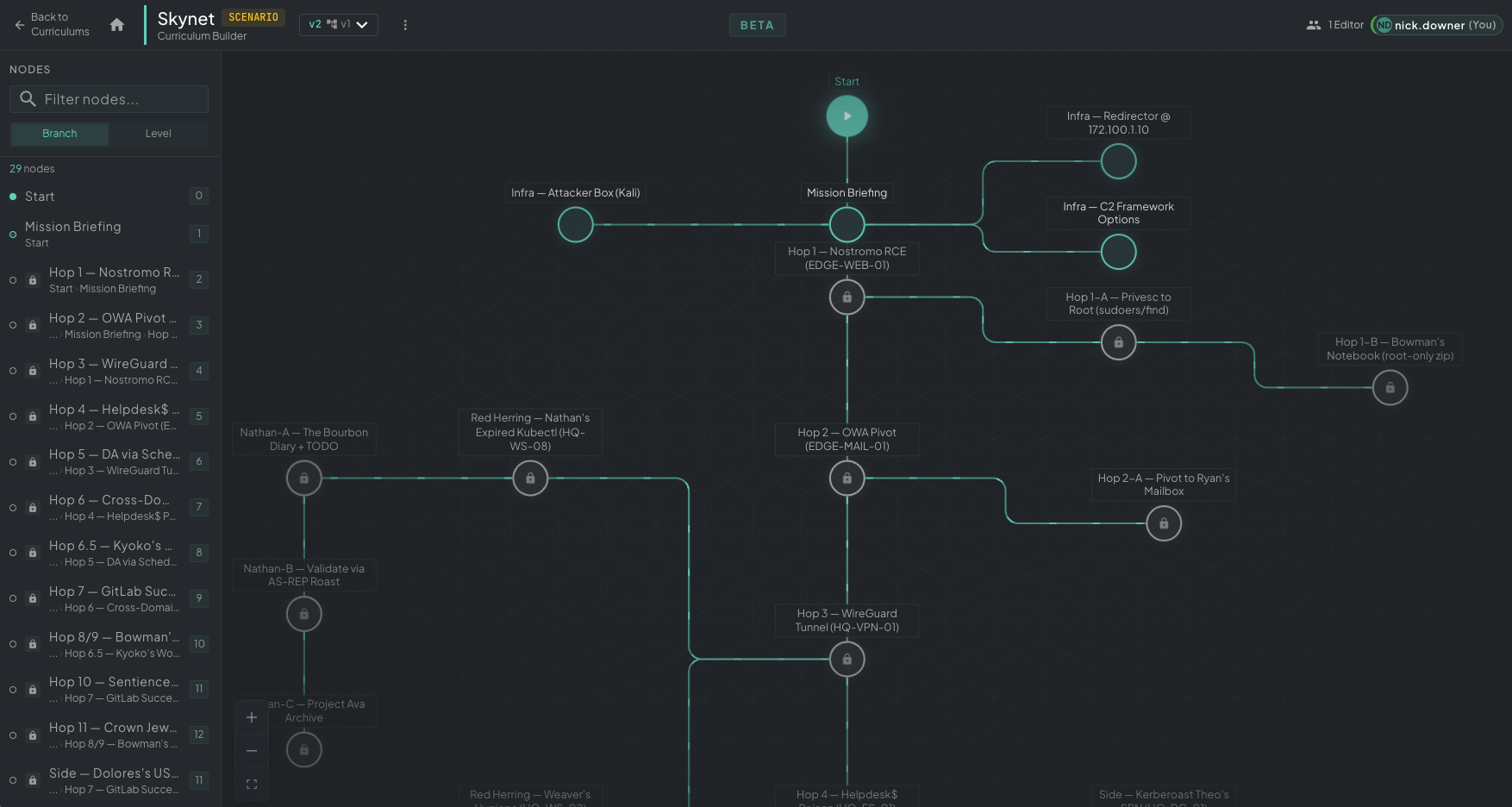 Architect curriculum builder view of a CTF graph — this shows the full structure. In play, you only see nodes adjacent to your progress; the rest is hidden by fog of war.
Unlocks work the same as linear flag unlocks — click the locked node, read the hint to find the key in the lab, then paste the unlock code to open it.
Split View
Section titled “Split View”Pair the curriculum viewer with a VM console using the Snap Layout menu — left half for the lab, right half for the task. Read the question, do the work, no alt-tabbing.
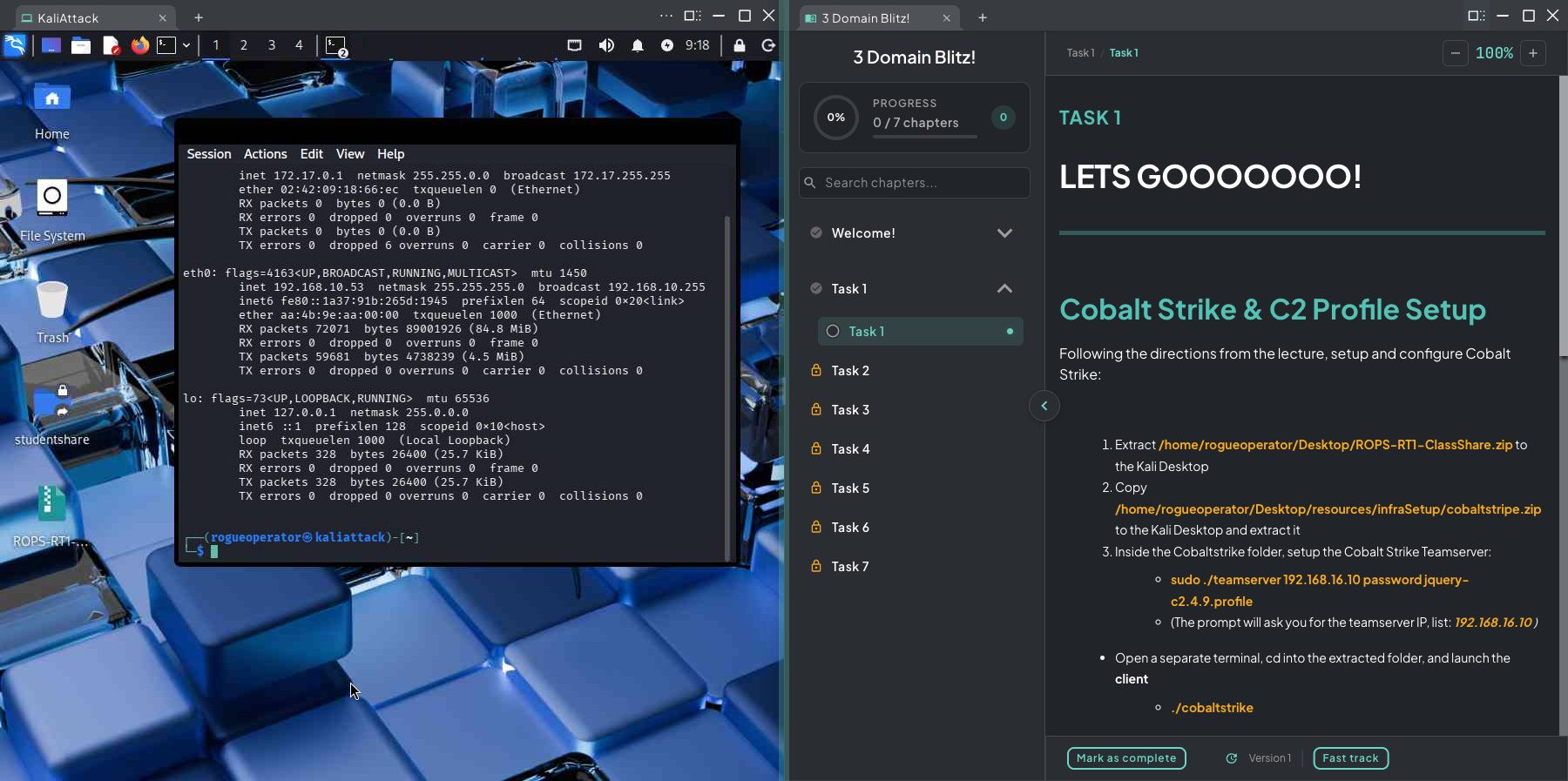 Kali snapped left, curriculum snapped right — work the lab and read the task side by side.
Flag Unlocks
Section titled “Flag Unlocks”Some chapters are gated behind a flag you earn inside the lab itself. When you click a locked chapter, the platform shows you a hint telling you exactly where to find the unlock key — a file path, a command to run, or an artifact to retrieve from the environment.
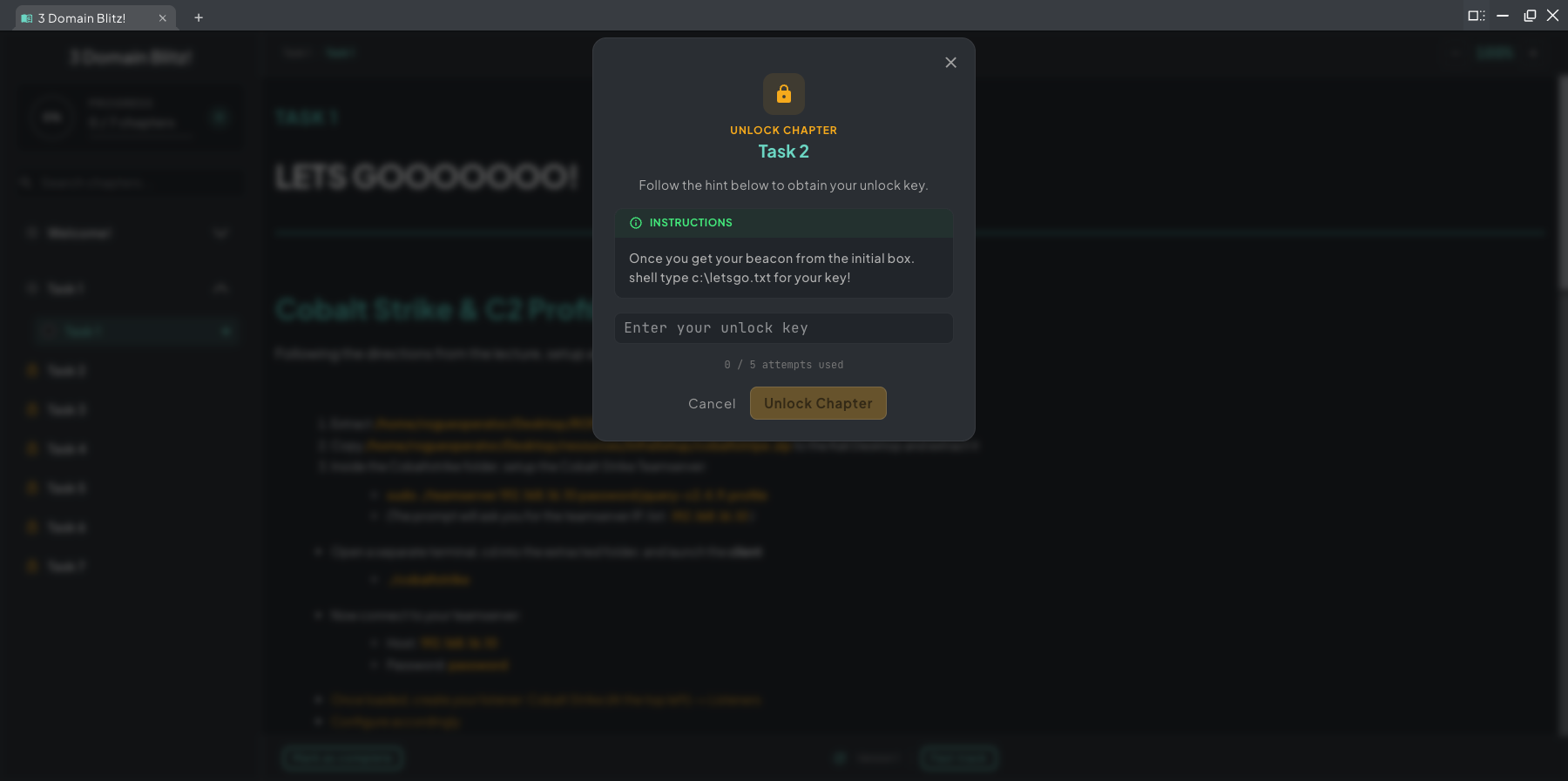 Locked chapter prompt — read the hint to find the flag in the lab, then paste the key to unlock the chapter.
Once you have the key, paste it into the field and hit Unlock Chapter. You get a limited number of attempts, so read the hint carefully before submitting. This mechanic ties course progression directly to your hands-on work in the lab.
Flag unlocks gate student progression — learners can’t skim through a scenario; they have to actually complete the hands-on work to find each key and move forward. Great for managers and instructors who want a verifiable, paced view of how a student is progressing through the labs.
Unlock keys are salted per learner, so students can’t share keys with each other — what works in one student’s deployment won’t work in another’s.
All Curriculum
Section titled “All Curriculum”All Curriculum shows every course available to you across all scenarios — not just the one tied to your current deployment. Use it to browse, continue in-progress courses, or start a course from a scenario you haven’t deployed yet.
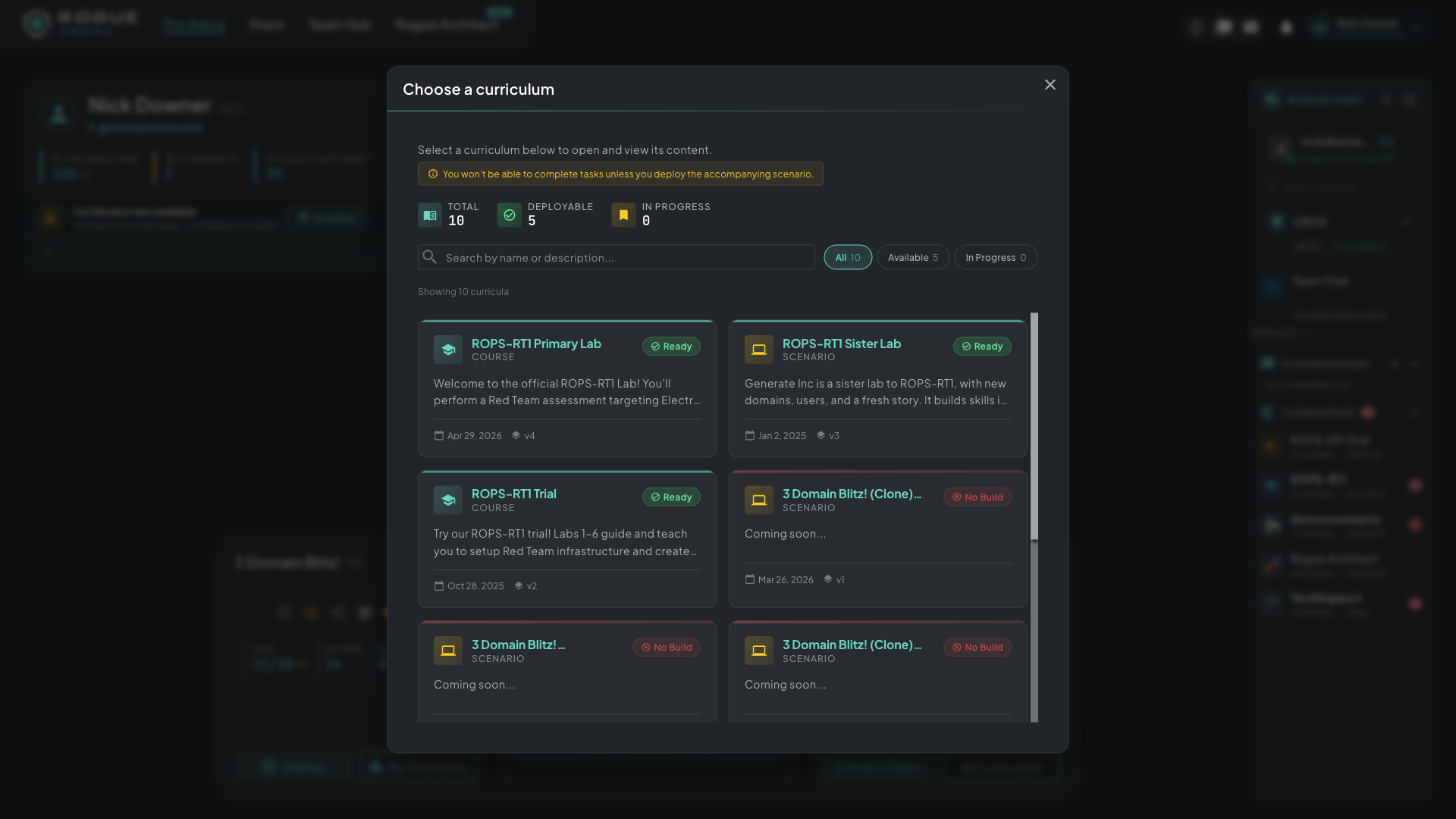 All Curriculum picker — every course available to you, even across scenarios you haven’t deployed yet.
Your progress is saved automatically across sessions. Leave the deployment, come back later, and you’ll pick up exactly where you left off.