

Adding Machines
Machines are the virtual machines that make up your scenario. Each machine is based on a template — a pre-built OS image (Windows Server, Ubuntu, Kali Linux, etc.) that serves as the starting point for your build.
Adding a Machine
Section titled “Adding a Machine”- Open the Machines section in the left sidebar to browse available templates
- Find the template you want (e.g., “Windows Server 2022”, “Ubuntu 22.04”, “Kali Linux”)
- Drag the template onto a VLAN container on the canvas
- A configuration panel opens — set a nickname and adjust settings
- Click Save
The machine appears as a node inside the VLAN container.
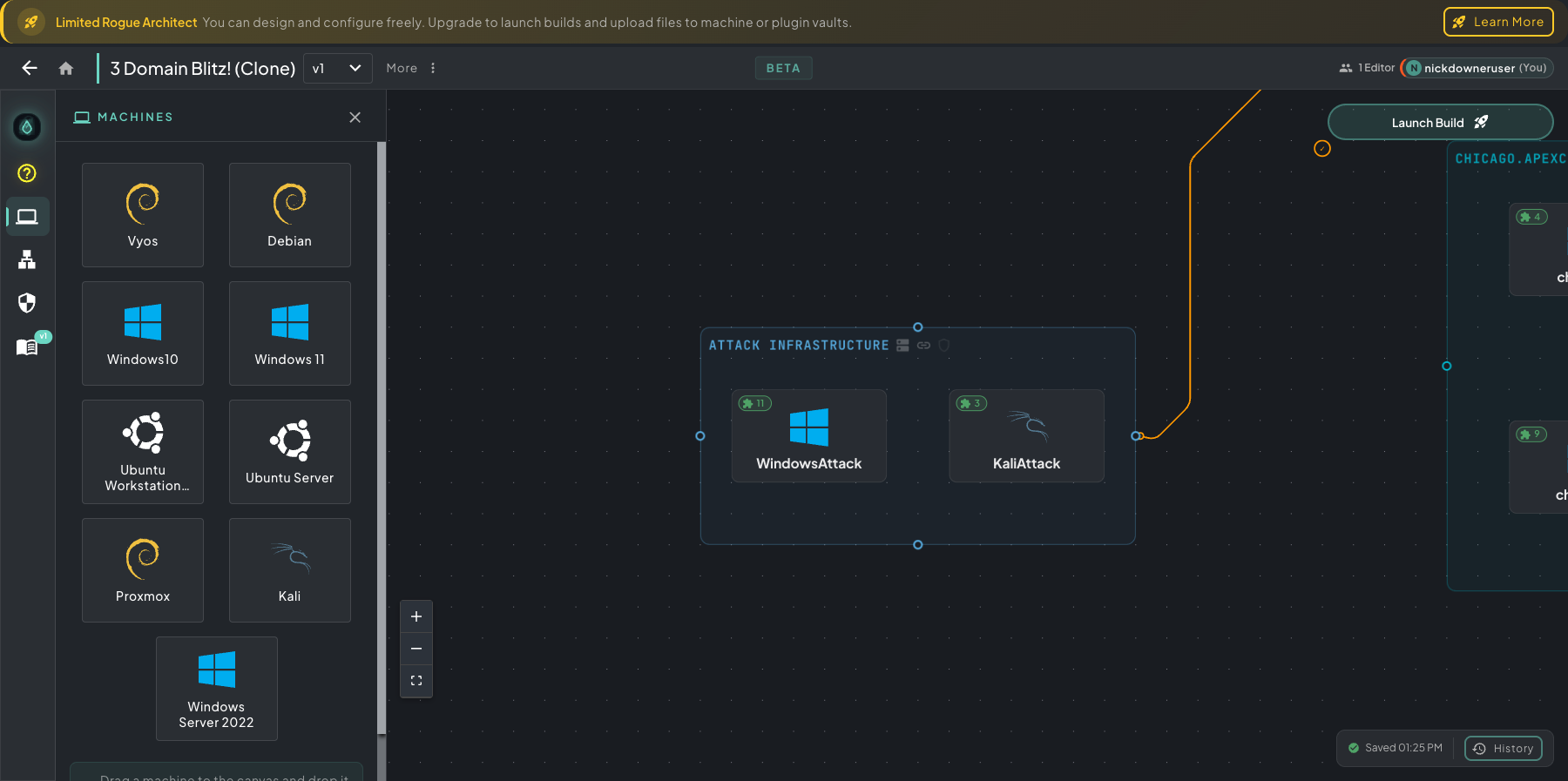 Machines panel open on the left — drag any template onto a VLAN container. The VLAN on the right shows the result: a populated domain segment with a DC, file server, and workstations.
Machine Settings
Section titled “Machine Settings”Basic Settings
Section titled “Basic Settings”- Nickname — A descriptive name for this machine (e.g., “DC01”, “Kali-Attack”, “WebServer”)
- RAM (GB) — Memory allocated to the VM
- CPU Cores — Number of CPU cores
Visibility Settings
Section titled “Visibility Settings”- User Controllable — When enabled, students can view and control this VM before completing the scenario. After scenario completion, all machines become visible regardless of this setting. Turn this off for backend infrastructure machines that students shouldn’t interact with directly.
- Include in Student VM Dock — There are 2 VM slots visible to students immediately on login. Enable this for the primary machines students will use (typically a Windows workstation and a Kali attack machine).
Advanced Options
Section titled “Advanced Options”- Architect Given Username / Password — Display credentials to students for this machine. These are for display only — they are not automatically created on the VM. You’ll need a plugin to actually create the user account.
- Enable Internet During Architect Build — Enables internet access during the Ansible build phase. Useful for patching, installing updates, and downloading packages. Requires the Architect Internet permission.
- Enable Internet in End-User Deployment — Enables internet access when the scenario is deployed and launched by end users. Requires the Deployed Internet permission.
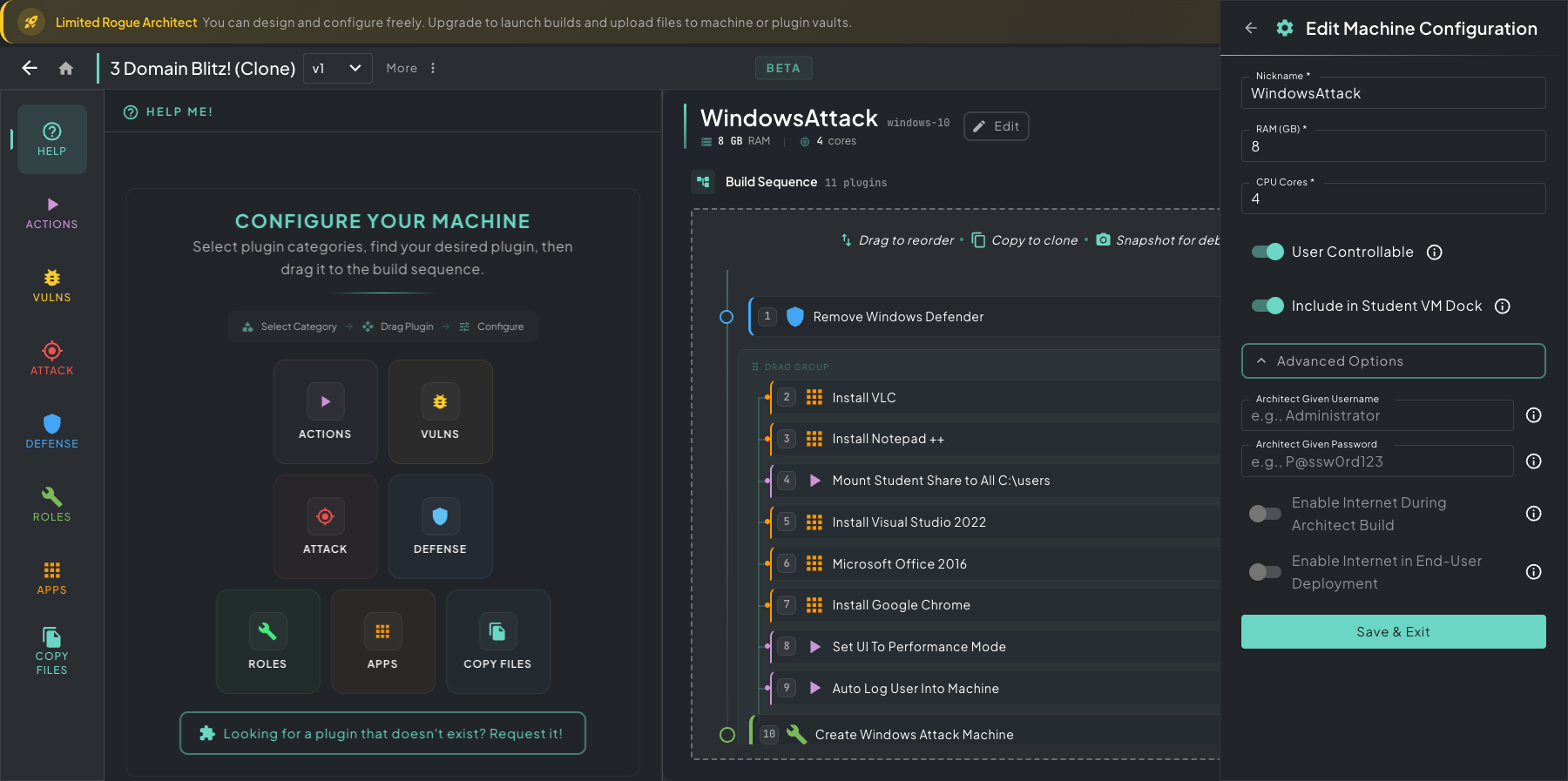 Machine view — Help Me’s plugin categories on the left, the build sequence in the middle, and Edit Machine Configuration on the right with Advanced Options open (architect-given credentials, internet toggles, etc.).
Moving Machines Between VLANs
Section titled “Moving Machines Between VLANs”To move a machine to a different VLAN, use the machine’s context menu or the update panel to change its VLAN assignment. The machine will be removed from its current VLAN and placed in the new one.
Cloning Machines
Section titled “Cloning Machines”Right-click a machine to clone it. The clone gets a copy of all plugins and their configured parameters, saving time when you need multiple similar machines.