

Updating Metadata
Five buttons across the top of the plugin editor each open a panel that controls a different slice of the plugin’s metadata. Most plugins need at least Templates and Parameters; the rest are situational.
Templates
Section titled “Templates”Click Templates to pick which OS templates this plugin is compatible with. Drop the list down to just the templates your plugin actually targets — a Windows-only plugin should not show up as available on Ubuntu boxes.
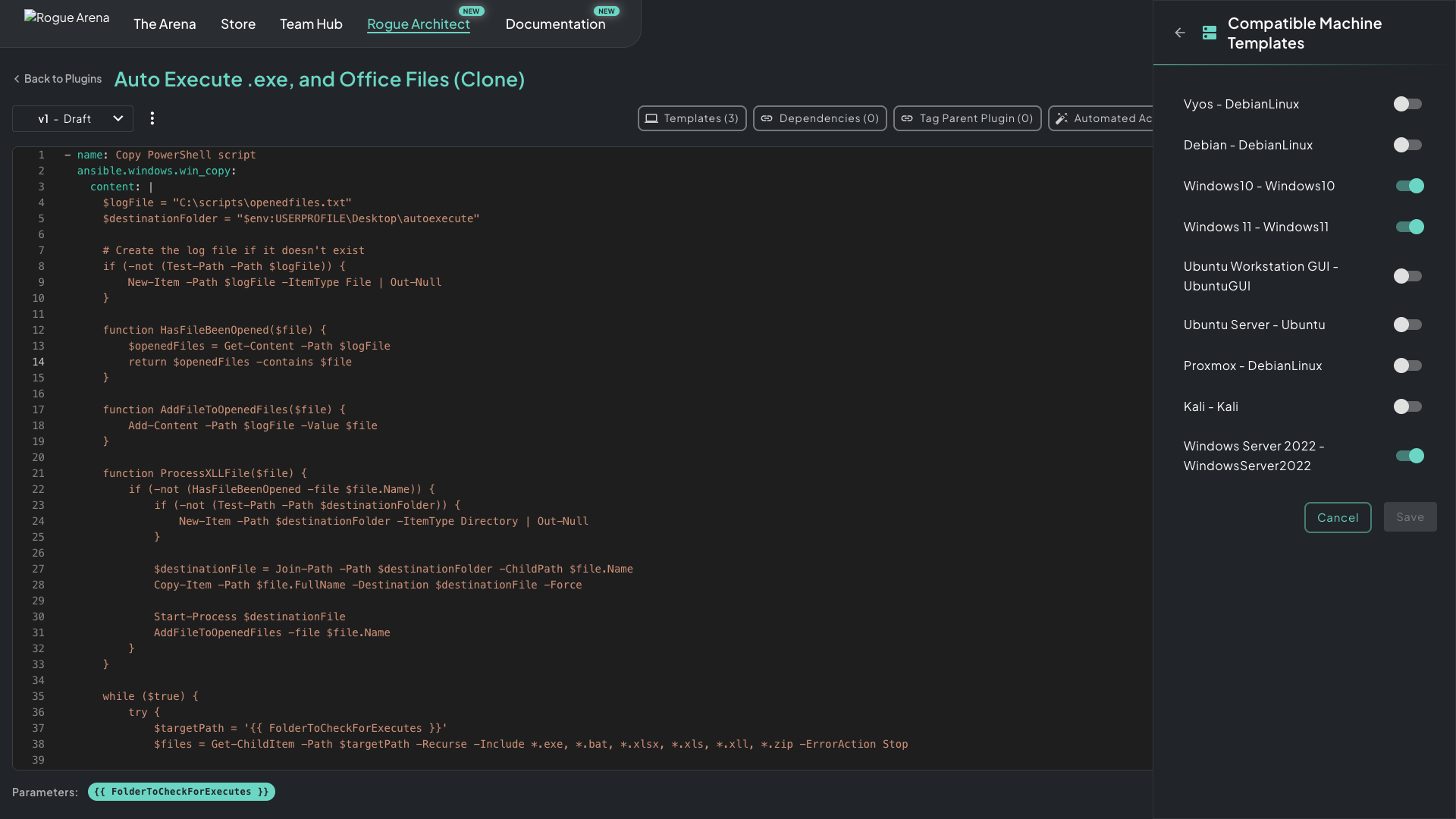 Compatible Machine Templates — toggle on every OS where the plugin should be available, leave the rest off.
Default catalog ships with every OS toggled — that’s intentionally permissive. Narrow it down before publishing or scenario builders will see your Windows plugin offered on a Kali box.
Tag Parent Plugin
Section titled “Tag Parent Plugin”Click Tag Parent Plugin to mark this plugin as a child of another plugin — typically a client/server pairing across two different machines (e.g. Elastic Agent → Elastic Stack Server, AD Member → Domain Controller, Wireguard Client → Wireguard Server).
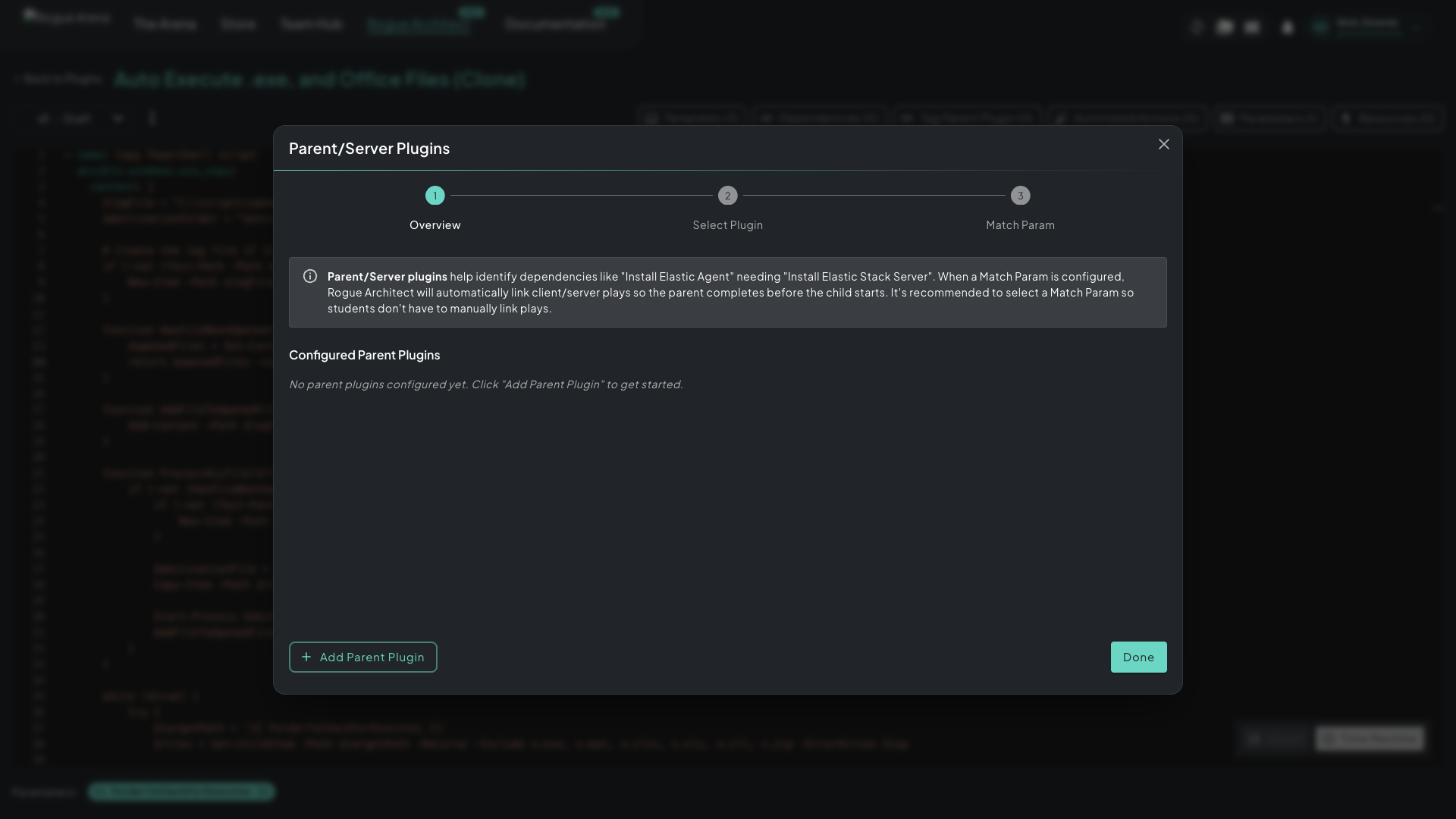 Tag Parent Plugin — a three-step flow to declare which plugin must complete first, and (optionally) which parameter ties the two plays together.
The Match Param is the secret sauce: pick a param shared between parent and child (often a hostname, FQDN, or IP), and Rogue Architect automatically wires the client to the matching server in any scenario. Students don’t have to manually link plays.
You can skip the Match Param if no shared parameter makes sense — the dependency still works, it just won’t auto-link in the canvas.
Automated Actions
Section titled “Automated Actions”Click Automated Actions to declare side effects that fire on the canvas when this plugin gets added or applied — bump the host machine’s RAM, set a VLAN’s nickname from a domain FQDN, stamp DNS forwarding targets, etc.
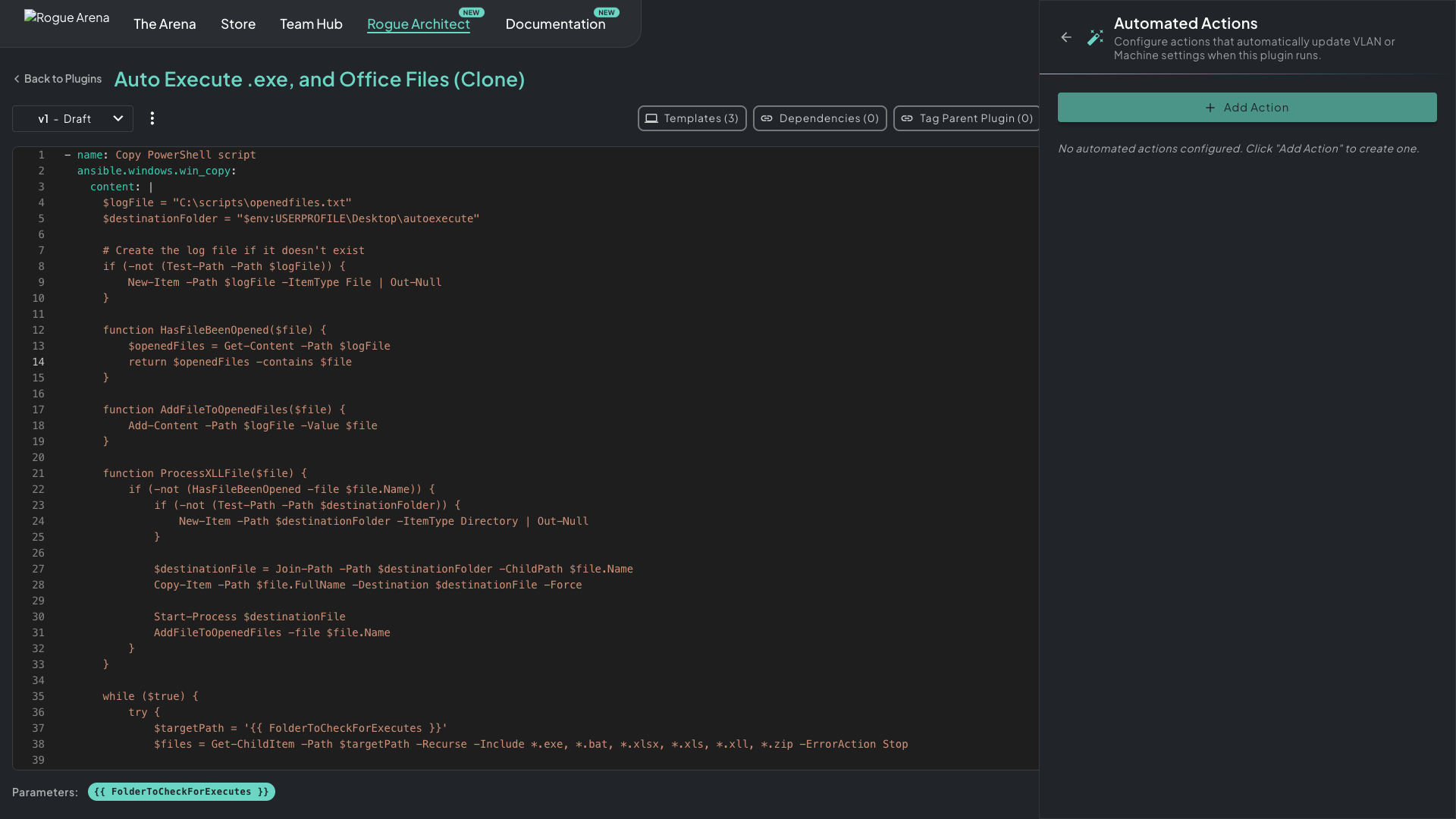 Automated Actions drawer — empty by default. Click Add Action to open the stepper.
Hit Add Action to open the two-step stepper:
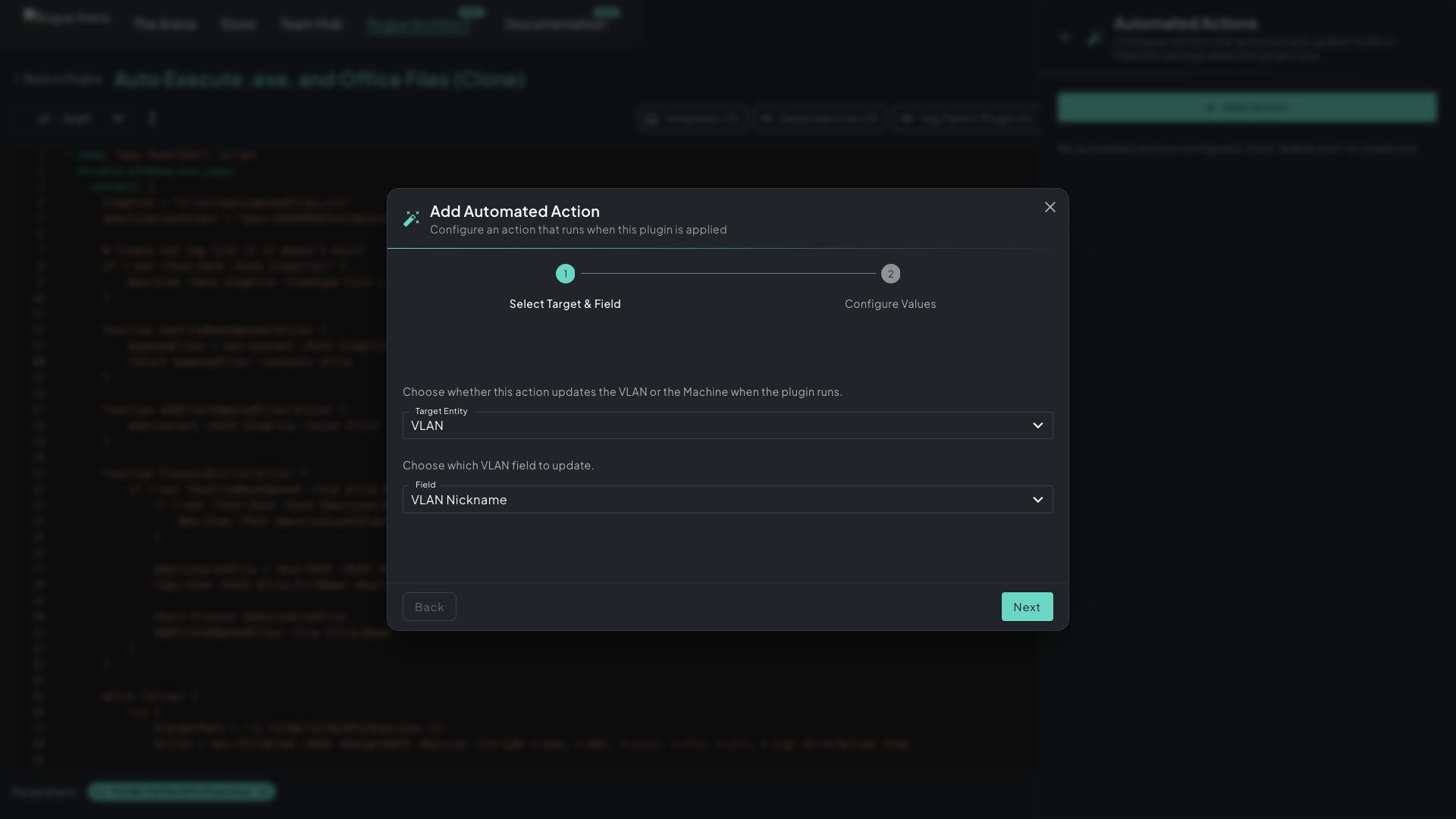 Add Automated Action stepper — pick the target entity (VLAN or Machine), choose which field to update, then map a value (literal or from a plugin param).
Two steps:
- Select Target & Field — choose VLAN or Machine, then which field on that entity to write (e.g.,
Machine.ramGB,VLAN.nickname,VLAN.staticHostMappings) - Configure Values — either a literal (
10GB of RAM) or a param-driven mapping (${DomainNameFQDN}to stamp the VLAN’s nickname from a domain param)
Reach for this when the plugin is heavyweight enough to need bigger boxes (Elastic, Splunk, Kubernetes — bump RAM/CPU), or when the plugin defines part of the network’s identity (a DC plugin naming the AD forest). Most plugins don’t need any automations.
Parameters
Section titled “Parameters”Click Parameters to define the typed inputs scenario builders fill in when they add your plugin to a machine.
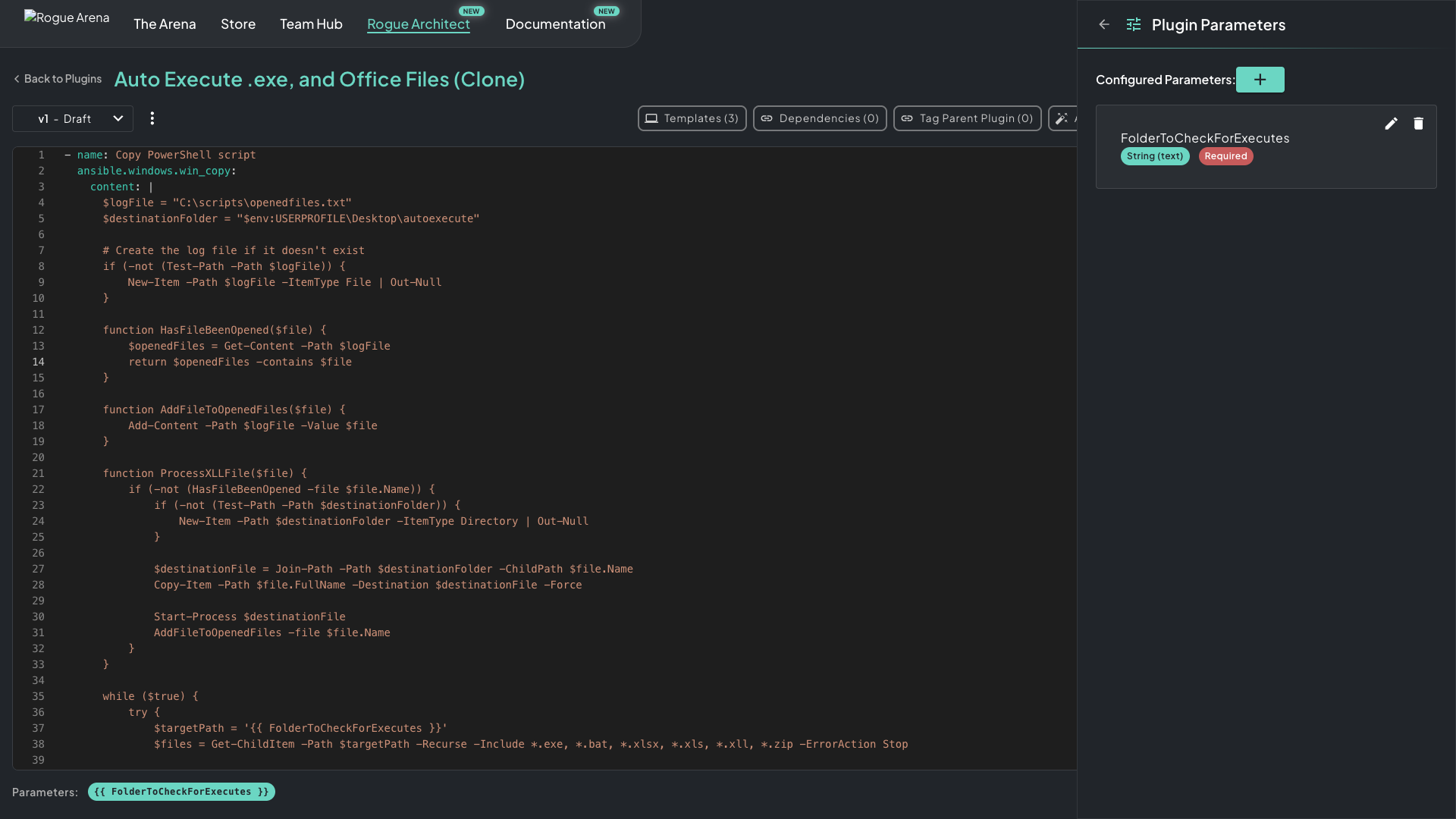 Plugin Parameters — typed inputs surfaced on the canvas. Add, edit, or reorder; mark each Required or optional with a default.
Supported types:
- string — single-line text (hostname, username, license key)
- number — numeric value (port, timeout, version)
- boolean — true/false toggle
- stringBlock — multi-line text (scripts, configs, file contents)
- csv — tabular data with defined column headers (user lists, IP mappings, OU paths)
Two rules of thumb:
- Match what’s in your YAML. Every
{{ my_param }}reference in the YAML should have a matching entry here. - For CSV params, embed a copy-paste example in the description. End users see the description in the platform UI when filling in the canvas — a paste-ready CSV block beats a vague “comma-separated values” hint.
For how these surface on the canvas, see Configuring Plugin Parameters.
Resources
Section titled “Resources”Click Resources to upload files into the plugin’s vault — installers, scripts, archives, configs, Docker image tarballs, anything too big to ship inline in YAML.
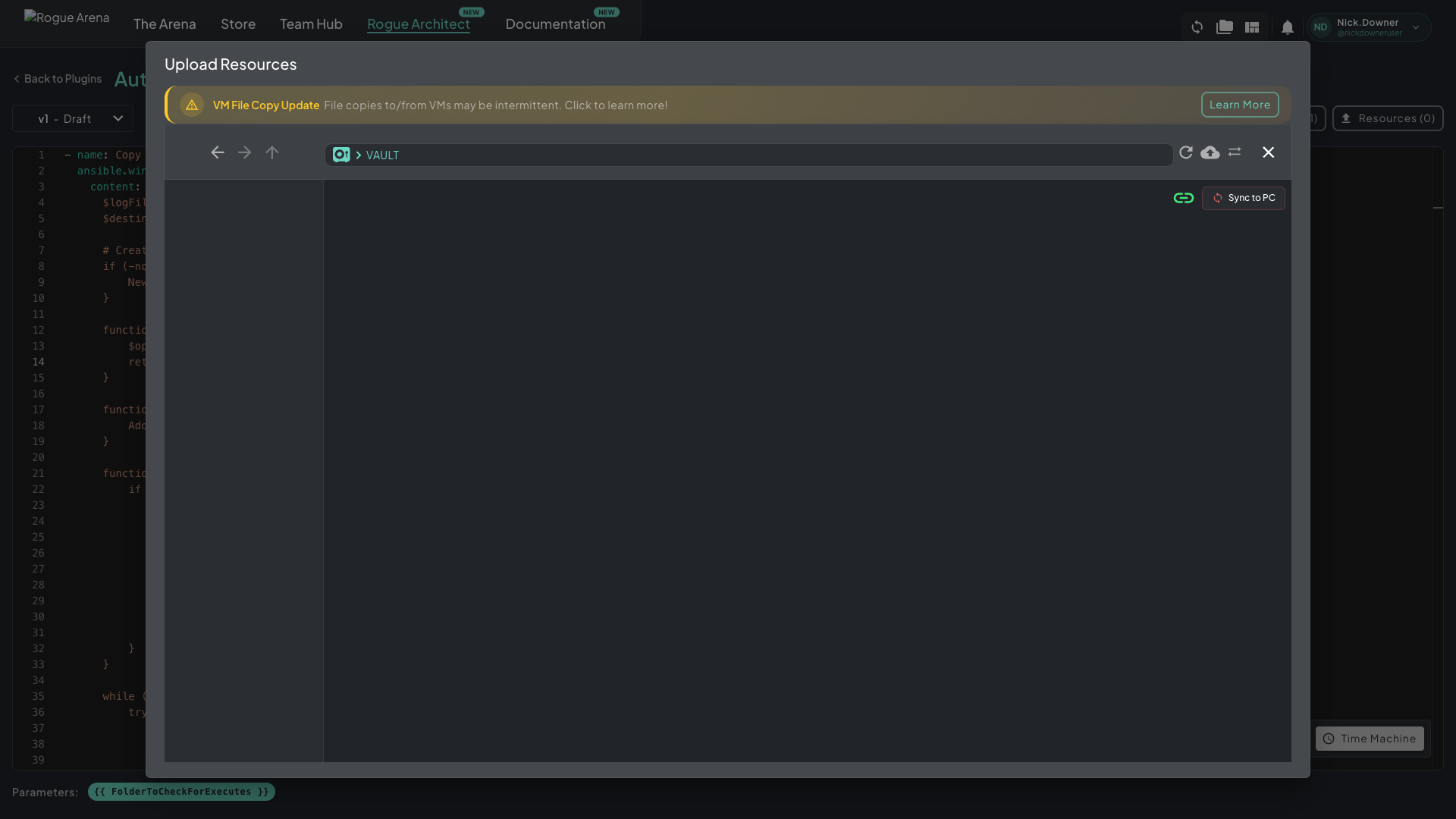 Resources — the plugin vault. Upload files here; reference them from YAML with
 win_copy / copy and a src: matching the vault filename.
Vault files are referenced by filename from win_copy / copy:
- name: Stage VLC installer from plugin vault ansible.windows.win_copy: src: vlc-3.0.20-win64.exe dest: "C:\\PluginSetup\\vlc-3.0.20-win64.exe"The src: value matches the vault filename; the platform handles the ACN-side path resolution for you.