

Platform Chat
Rogue Arena includes a built-in chat (Rogue Chat) that lives on the arena home alongside your scenario. Use it to coordinate with teammates, ping your instructor, or drop into a course room to ask the whole class a question — without leaving the platform.
The Chat Panel on the Dashboard
Section titled “The Chat Panel on the Dashboard”The chat panel sits on the right side of the arena home screen. It lists your conversations, communities, and direct messages — all visible at a glance the moment you log in.
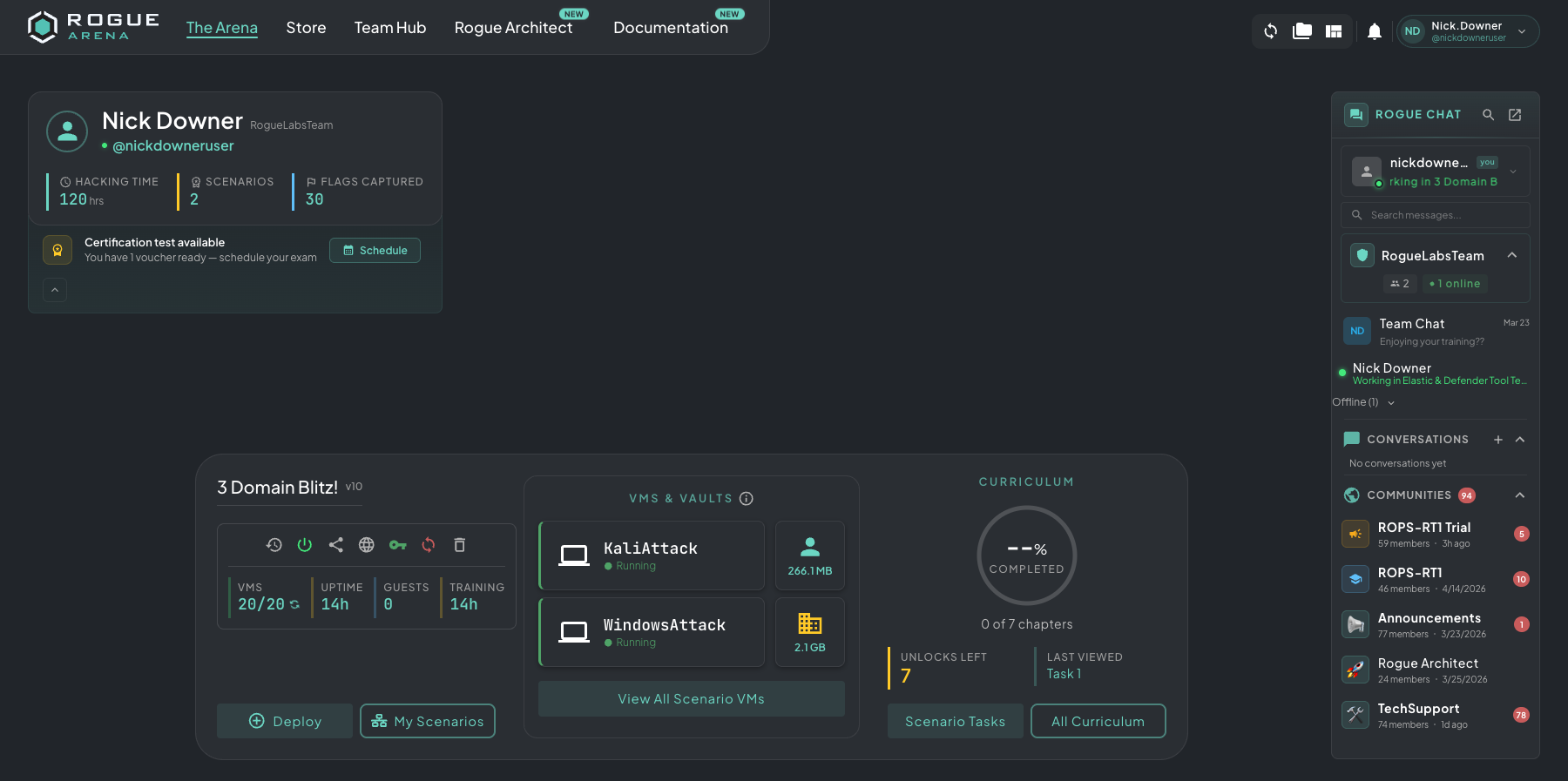 The Rogue Chat panel docked on the arena home — every conversation and room you have access to, one click away.
Opening Chat
Section titled “Opening Chat”Click any conversation in the panel to pop it out into a chat window. The window floats over your workspace so you can keep messaging while a VM is open.
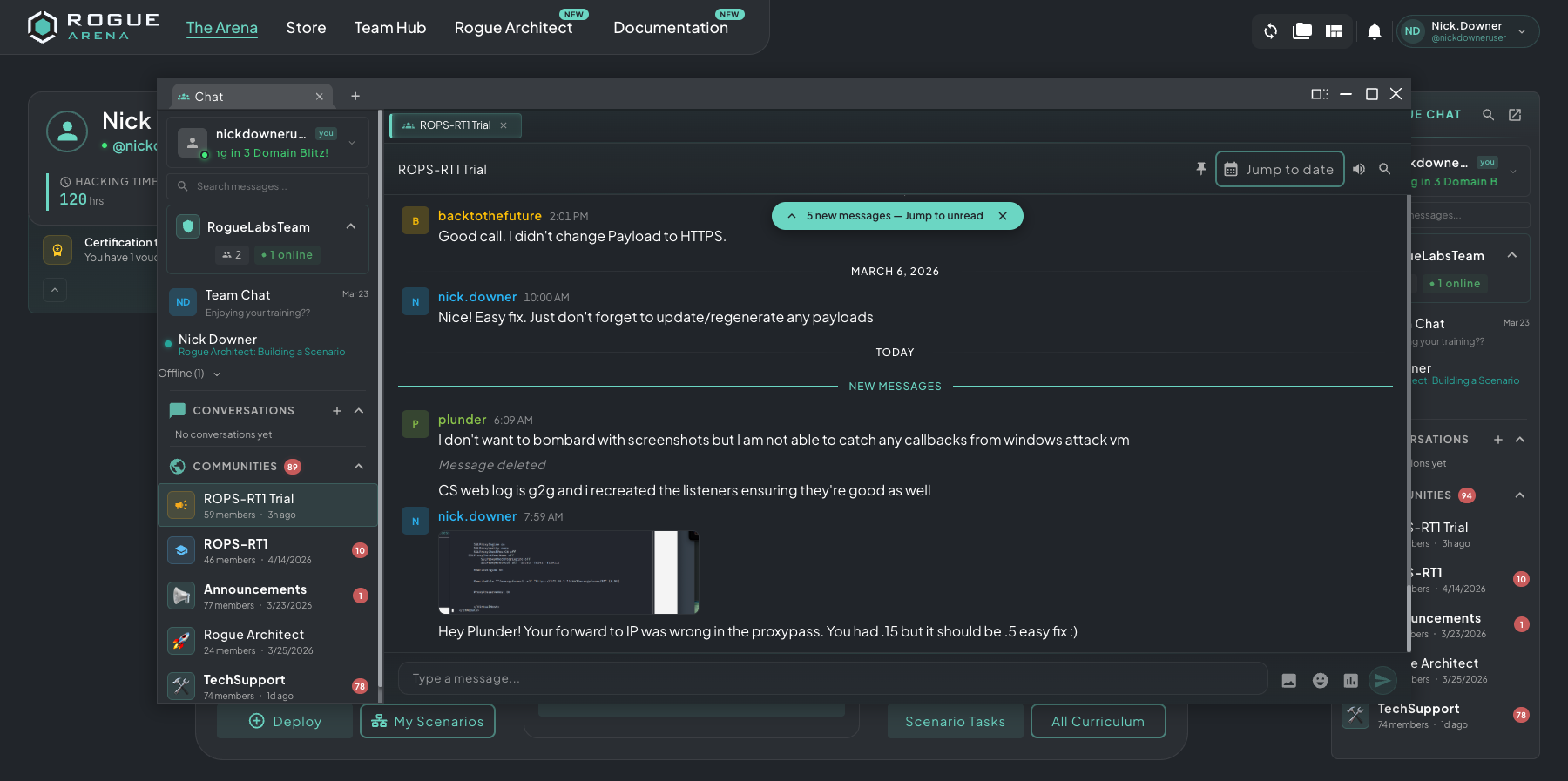 Chat opened as a floating window — sample conversation in the ROPS-RT1 trial cohort with the dashboard still visible behind it.
Chat Categories
Section titled “Chat Categories”Rogue Chat organizes conversations into a handful of room types so it scales from a 1:1 ping all the way up to a 100-seat course:
- Course rooms — automatically created for every course you’re enrolled in; everyone in the cohort plus the instructors are in the room
- Live course iterations — when Rogue Labs hosts a live course (a bootcamp, a weekly cohort, an instructor-led workshop), students and instructors are placed in a shared room for that run — separate from the persistent course-wide room and removed when the course ends
- Event rooms — temporary rooms for a one-off live event (workshop, hackathon, demo day) that disappear when the event ends
- Custom groups — rooms you create yourself for any group of platform users (a squad, a study group, a project team)
- DMs — one-to-one direct messages with any user on the platform
- Custom DMs — multi-person direct message threads you spin up ad-hoc, without creating a full group
Features
Section titled “Features”- Real-time messaging — messages appear instantly for everyone in the room
- Unread badges — counts on the chat icon and per-conversation so you don’t miss updates while focused on a VM
- Persistent history — every message is preserved; jump back into a course room weeks later and the thread is still there
- Image pastes — paste screenshots directly into the message box for over-the-shoulder debugging