

Operating a VM
Every machine in your deployment is accessible directly from the browser via Rogue Arena’s custom VM browser — no VNC client, no RDP setup, no SSH keys to manage. Unlike traditional remote access tools, it requires no open ports on the VM. No SSH port, no RDP port, nothing exposed. The console gives you full graphical access to the desktop or terminal, exactly as if you were sitting in front of the machine.
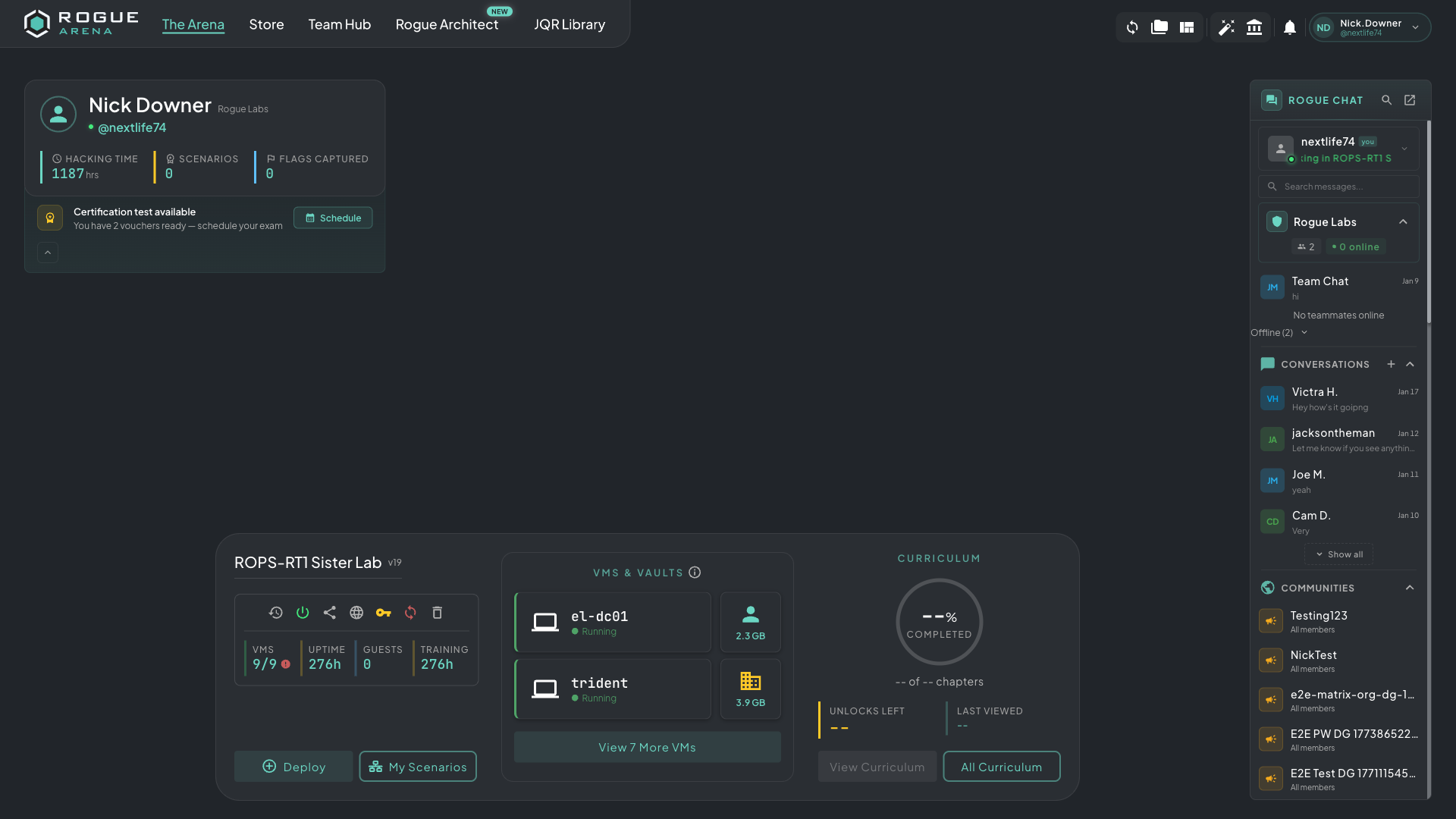 The Rogue Arena dashboard — your launchpad for everything in a deployment.
The VM Dock
Section titled “The VM Dock”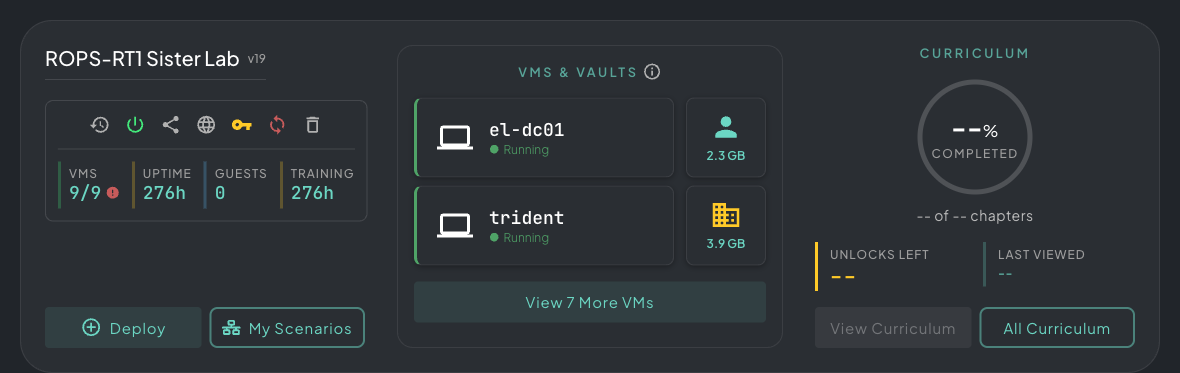 The VM dock — featured machines for one-click access, with a shortcut to view every VM in the scenario.
The VM dock is a favorites list — it shows the two VMs that are most commonly used in the scenario, giving you one-click access to the machines you’ll spend most of your time in.
To see everything you have access to, click View All VMs. This opens the full machine list for the deployment. Some VMs are hidden by design — backend and infrastructure machines stay out of sight until you’ve completed the scenario, at which point everything is revealed.
Click any machine in the dock or the full list to open its console.
The Window System
Section titled “The Window System”Rogue Arena uses a flexible windowed interface for VM consoles — you’re not locked into one machine at a time.
Snap Layout
Section titled “Snap Layout”Drag a console window to the edge of the screen to snap it into a split-screen layout — two machines side by side, or stacked. The square icon in the VM window’s top-right corner opens the snap menu — pick a layout preset or use Warp to instantly tile all open consoles.
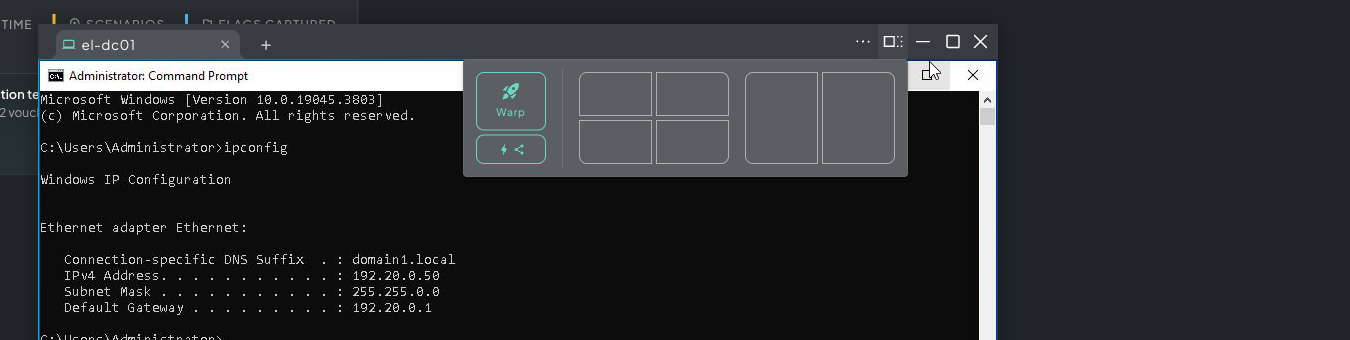 VM console with the snap layout menu open — pick a preset to tile multiple consoles side-by-side.
Multi-VM Tabs
Section titled “Multi-VM Tabs”Open multiple VMs as tabs within a single window. Hit + to open a new tab and pick any VM from the full scenario list — including machines not shown in the dock. Switch between them with a single click without losing your place in any of them.
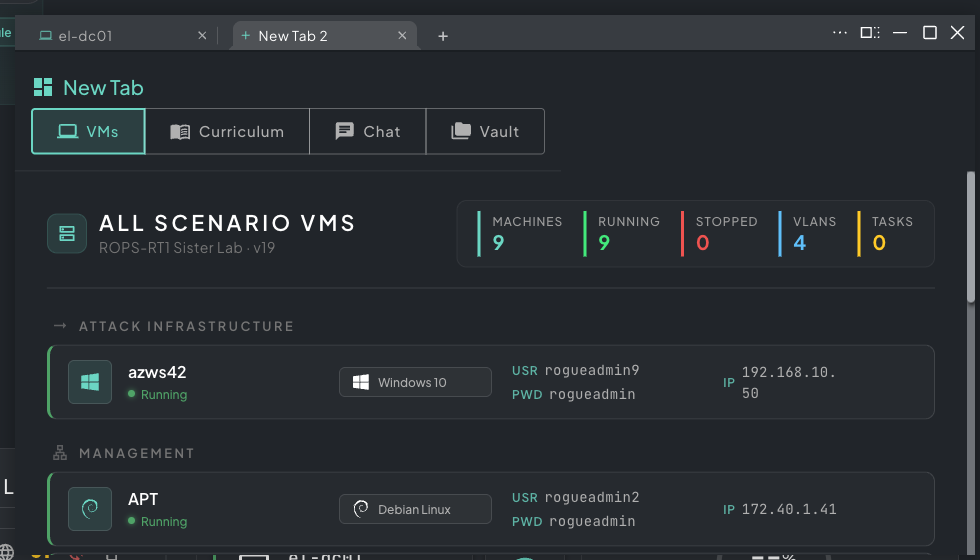 Multi-VM tabs — open several consoles in a single window and switch between them with one click.
VM Features
Section titled “VM Features”- Copy & paste — Works natively in Chrome and Firefox. Copy on your local machine, paste directly into the VM — no middleman clipboard menu required.
- Inject keys — For console VMs that don’t support standard copy/paste (e.g. a bare TTY or BIOS screen), click More and use Inject Keys to inject keystrokes directly into the VM.
- Auto-type admin password — The More menu includes a shortcut to automatically type the machine’s admin password into the active console, saving you from copy/pasting credentials manually.
- Simultaneous viewing & control — Multiple teammates can open the same VM at once and share input live. Built for over-the-shoulder help, pair debugging, and instructor walk-throughs — no screen-share or remote-control software required.
- Drag & drop file upload — Drag a file from your local machine and drop it directly onto the VM console to upload it straight to the desktop.
- Resize & reposition — Each console window is freely resizable and draggable anywhere in the workspace.
- Session persistence — There are no mandatory shutdowns and no per-minute billing. Close the browser, take a week off, come back — your machines are still running, your files are where you left them, your processes never stopped. 24/7 uptime with no time pressure.